
If you write across more than one device, desktop and mobile, we recommend using bibisco Everywhere. It’s built specifically for this: it keeps your projects synced and handles version conflicts for you. For example, if the copy on a device is older than the version in the cloud, bibisco warns you and lets you choose which version to keep.
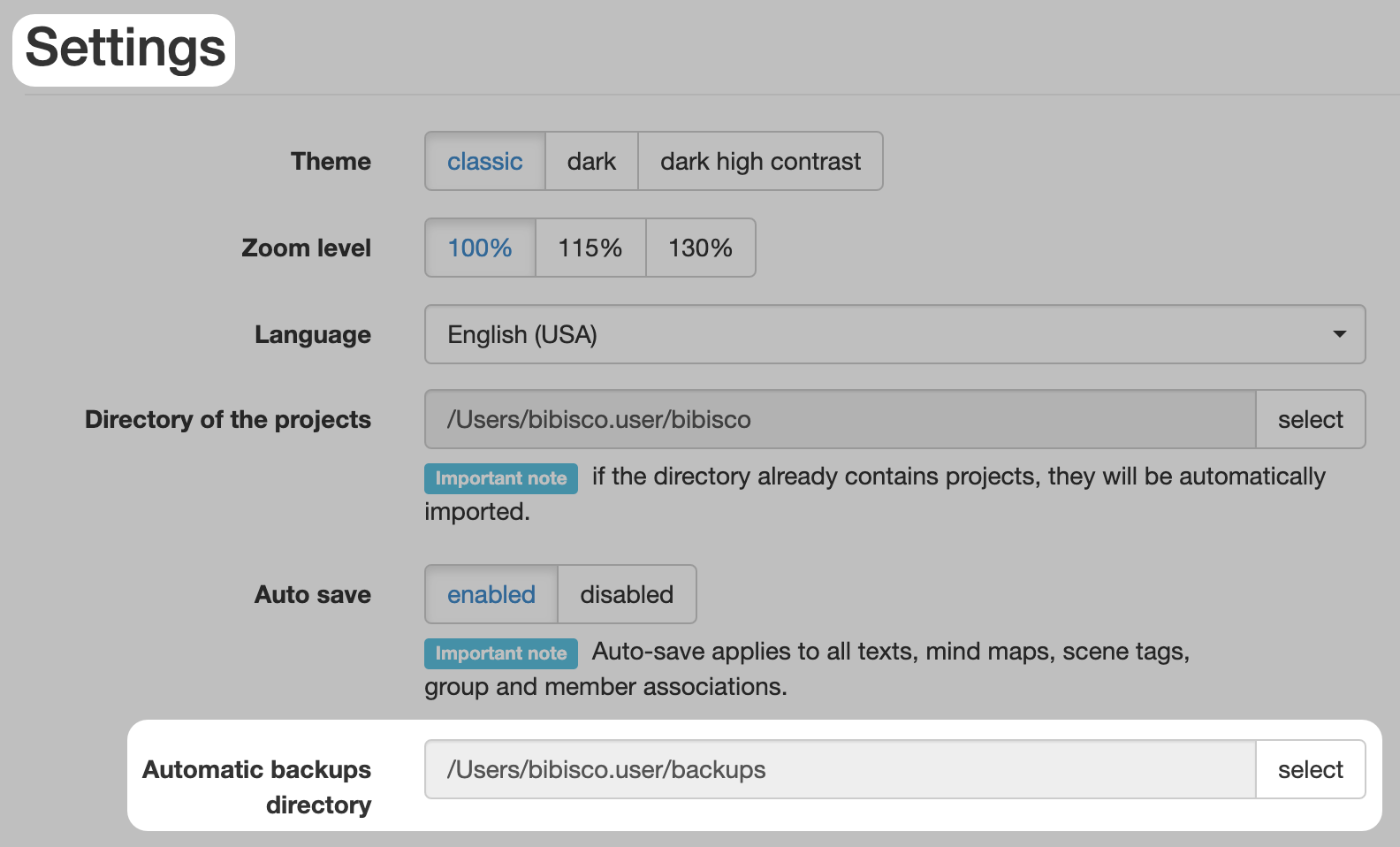
The automatic backup system of bibisco makes backups of the project you are working on at regular intervals and each time you exit the project. You can customize the settings for the automatic backups in bibisco Settings.
- Open the bibisco app.
- Click settings buttons on the welcome page.
- In the Automatic backups directory section, click the select button to change the directory. When you open bibisco for the first time, it will have you choose an automatic backup directory.
- You can either enable or disable Auto backup on exit. When enabled, an automatic backup will be created each time you exit the project.

- The Auto backup frequency can be set to never, 30 minutes, 1 hour, 2 hours, or 4 hours. An automatic backup will be created if there are any changes in the project and time defined with this setting have passed since the last backup.

- Enter a value for the Max backup number. Defines a maximum number of backup files for a single project in the backup directory. When the maximum number of backups is exceeded, the oldest backup file is deleted.

- Click save to confirm your changes.
Export Project as Archive #
bibisco makes backups by exporting the project as an archive. Each archive file has a significant name:
- Red: title of the project
- Pink: identifier of the project
- Yellow: timestamp of backup in the form YEAR_MONTH_DAY_HOURS_MINUTES_SECONDS
- Blue: File extension

Backup Best Practices #
Automatic backup system is not enough: store backups outside your computer!
Even if we think that it can never happen to us, unfortunately, accidents happen.
Your computer can be stolen, it can fall from your hands and crash on the ground, you can pour coffee over it and make it unusable, the hard drive can corrupt and become unreadable.
So, what can you do to avoid the loss of our work?
You have to store the backups outside of your computer:
- Regularly copying them from the backup folder of your computer to an external hard drive or USB key.
- Choosing as automatic backups’ directory, a directory on your computer that is synchronized with your cloud drive.